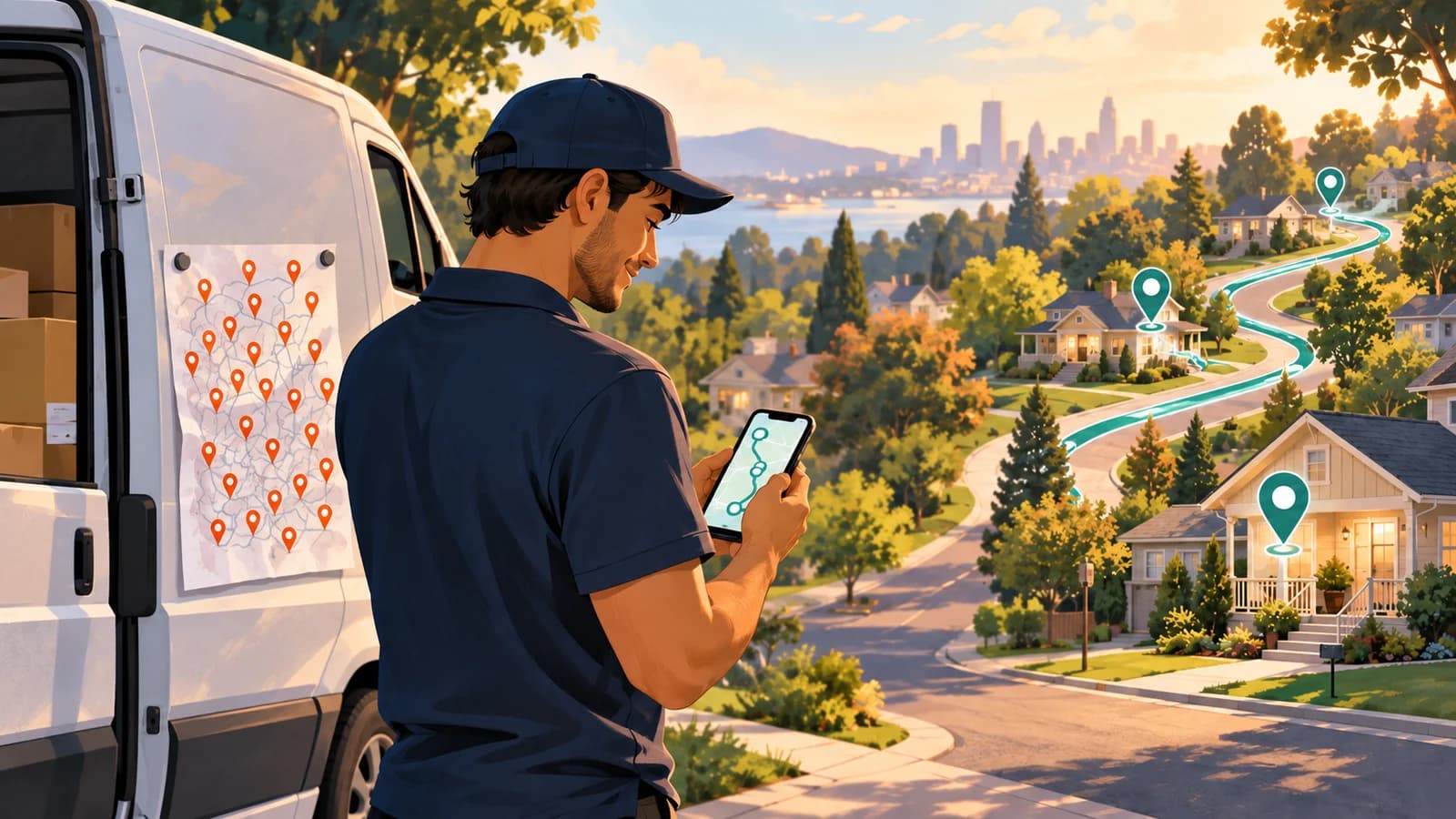
An illustrative delivery story. People and events are fictional; screenshots show the Fleetune product workflow.
Luis climbs into his van, opens the day’s delivery list, and counts 28 addresses.
Some are familiar. A few are on streets he has never visited. One customer wants a morning delivery, and another has a note about a rear entrance.
He starts entering addresses into his phone and moving them into what looks like a sensible order.
Should he go downtown first? Take the nearby residential stops? Save the farthest customer for the trip back?
The van is ready. Luis is still figuring out where to begin.
Delivery driver route planning can become a hidden part of the workday when drivers receive a list of destinations and are expected to turn it into a workable plan themselves.
An address list leaves a lot to decide
Luis knows how to get around. What he lacks is a clear sequence that accounts for the whole day.
Choosing the nearest next stop feels reasonable. But the next choice may take him away from a customer whose receiving window closes soon. An unfamiliar business may need more unloading time than he expects.
Meanwhile, his dispatcher cannot easily review a route that exists mostly in Luis’s head.
For a delivery fleet, a useful multi-stop delivery route planner should support a clear handoff: the dispatcher prepares and reviews the route, and the driver receives a sequence with the information needed to carry it out.
That gives both people something concrete to discuss before departure.
Give the driver a route before the first turn
Luis’s dispatcher, Erica, changes how she prepares the next day’s work.
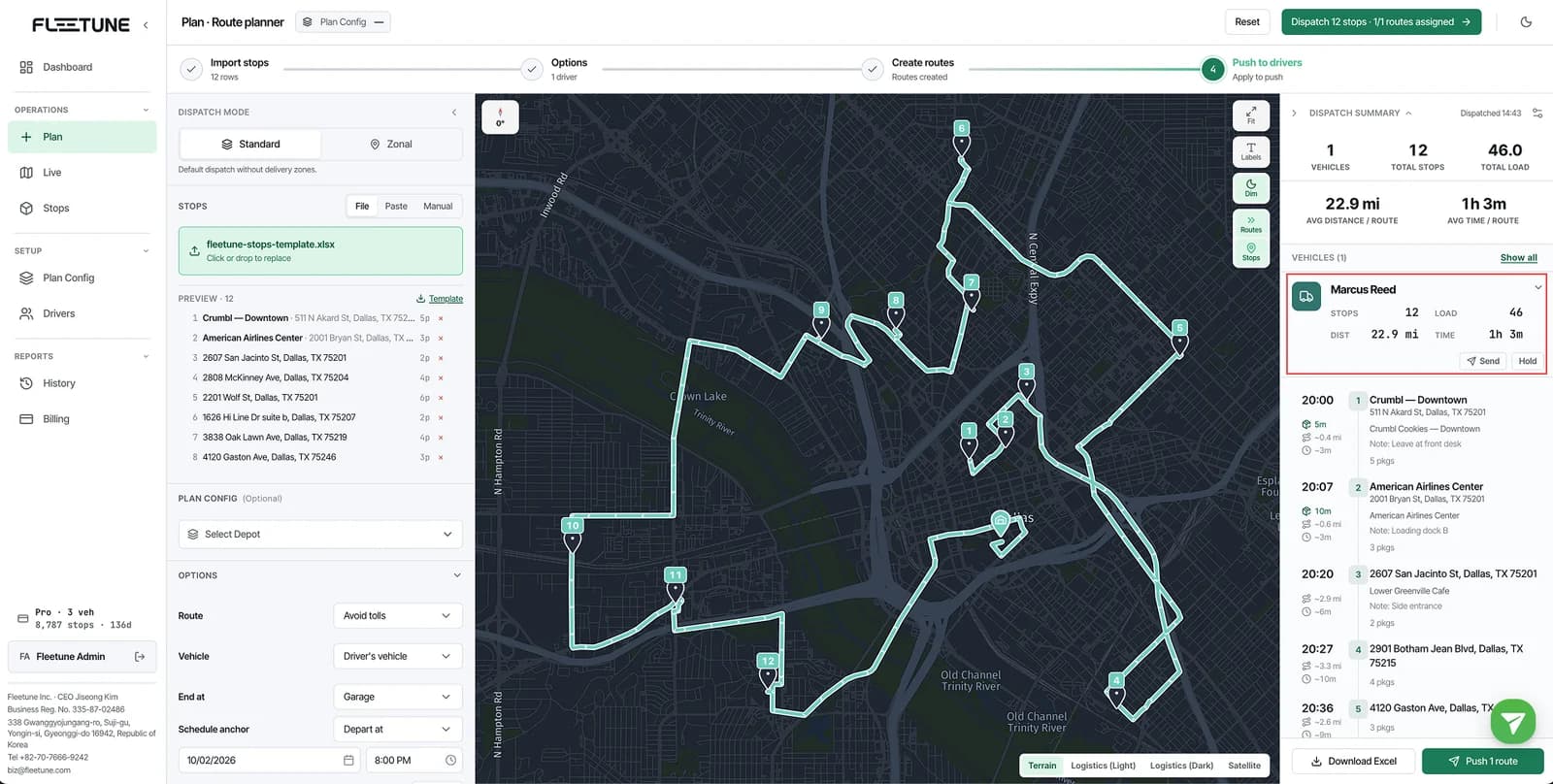
She imports the delivery list into Fleetune TMS, checks the stop information, selects the available drivers, and creates routes. Before publishing, she reviews the proposed sequence and any time-sensitive deliveries.
Then she uses Push routes to send the assignments to the drivers.
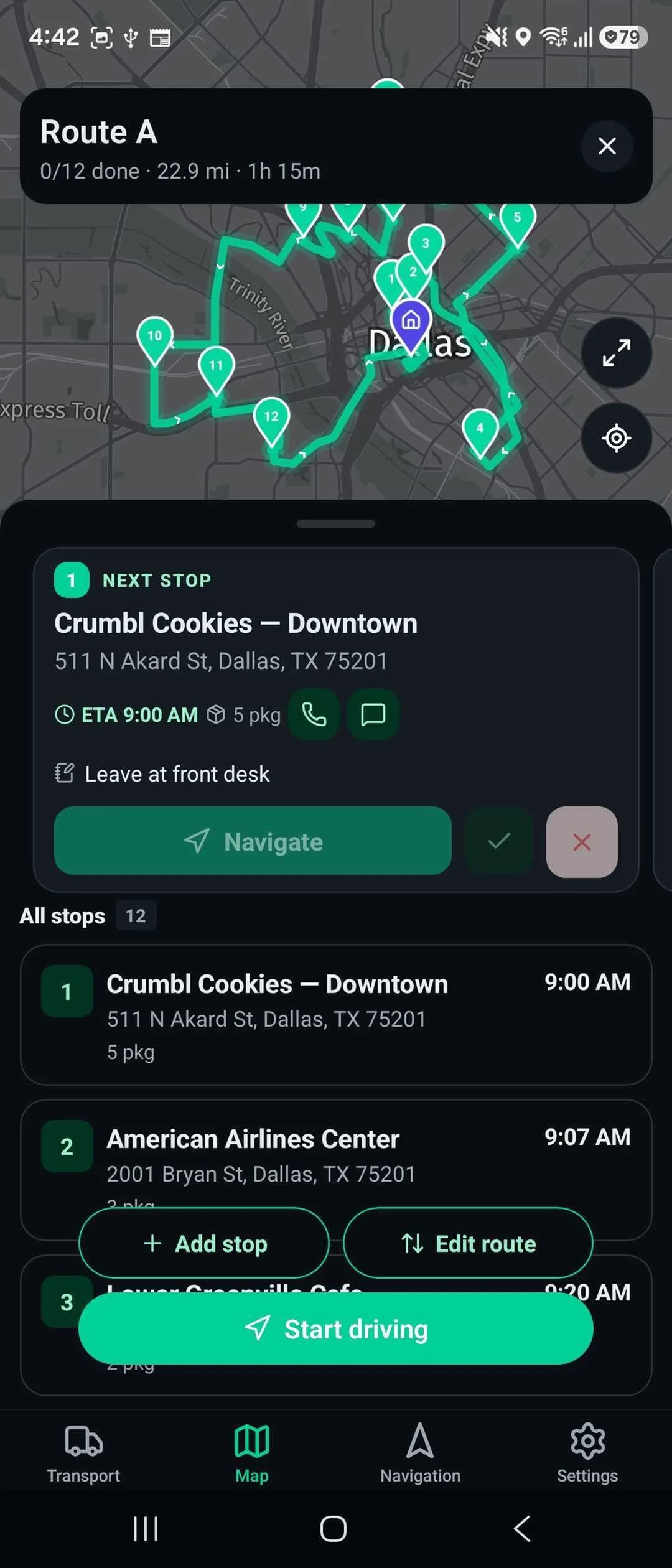
Luis receives a route notification. In the Fleetune Driver app, he can open the assigned route, review the stops, distance, and estimated time, and see where he is headed next.
The initial route is created in the dispatcher console. The driver app is the handoff point for receiving and running that route, with tools to adjust an existing route when needed.
That division gives Erica a plan she can review and Luis a starting point he can act on.
Keep navigation familiar
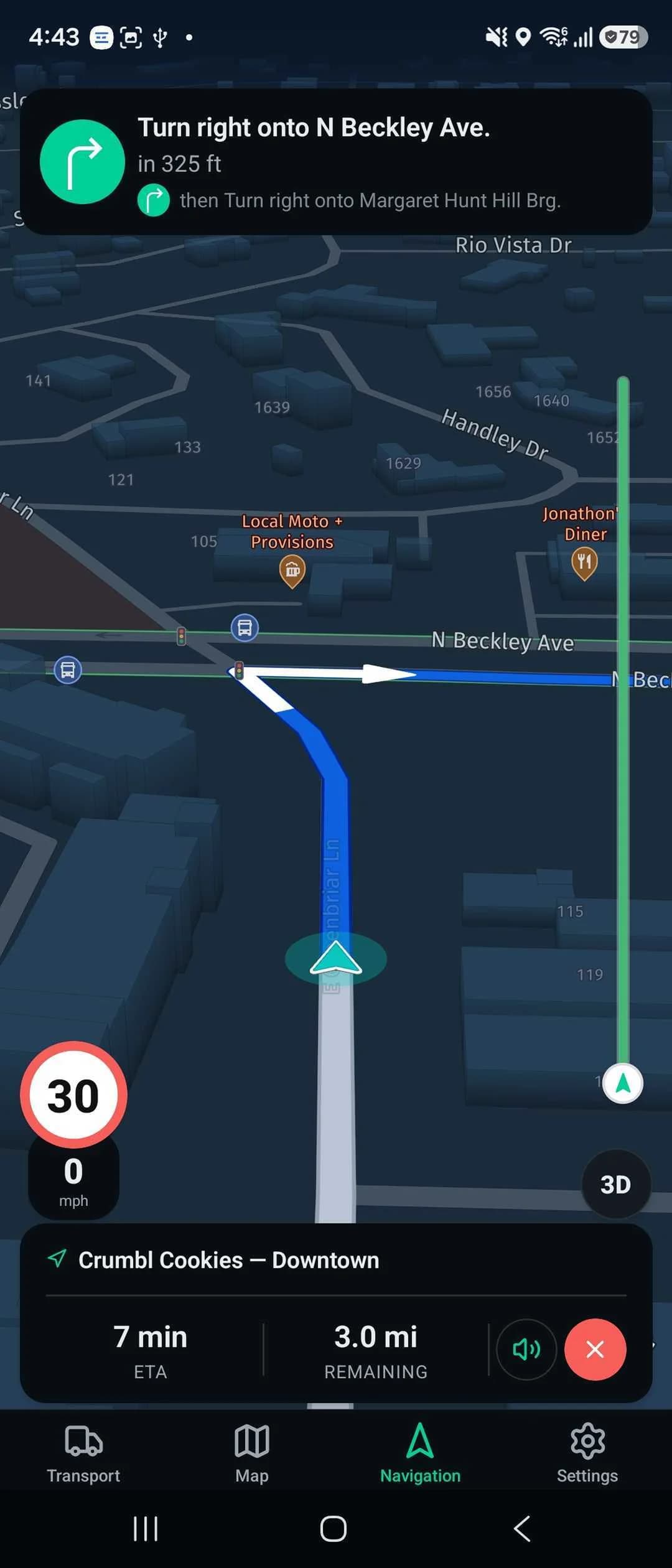
Luis checks the first stop while parked. When he is ready, he taps Navigate and gets turn-by-turn directions right inside the driver app.
Drivers who prefer their usual navigation app can switch in Settings: Fleetune can hand each stop off to Google Maps, Apple Maps on iOS, or Waze instead.
Either way, he can keep a familiar navigation experience while using the driver app to follow the delivery sequence and record progress. He no longer needs to rebuild the morning’s address list into a route before leaving the lot.
Leave room for the day to change
At one business, the receiving door is temporarily closed. Luis parks safely and contacts Erica about returning later.
Fleetune’s driver app supports reordering stops, adding a stop to an existing route, and skipping a stop with a reason. Reordering or adding stops updates route distance and estimated arrival times. A skipped stop can be reopened later.
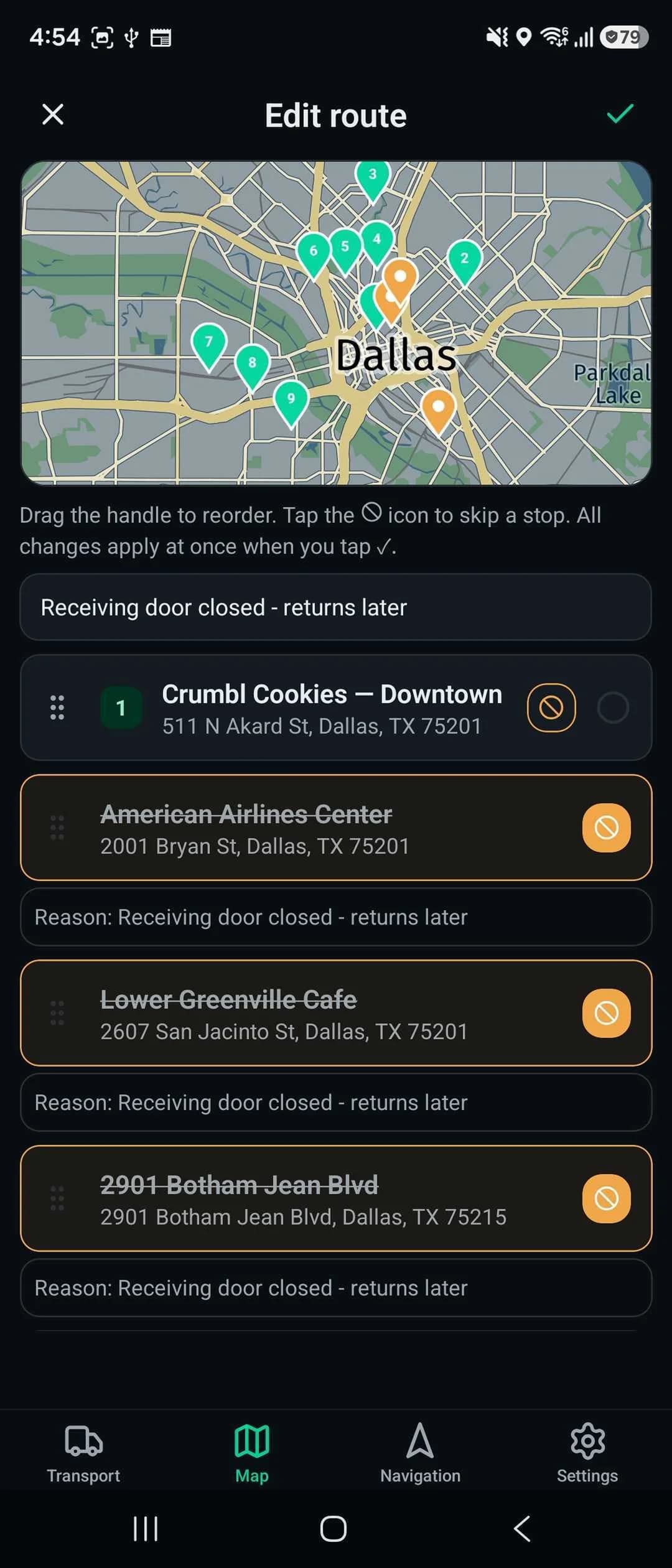
The team still needs a shared rule about which changes drivers can make independently and which need dispatch coordination. That matters when a change could affect another customer’s delivery window or another driver’s work.
Luis has local knowledge. Erica has the wider view of the day. A shared route gives them a place to combine the two.
A better first five minutes in the van
Before a driver leaves, make sure they can answer:
- Which route am I assigned to today?
- What is my first stop, and are there delivery instructions?
- Can I open navigation from the route?
- How should I handle a closed location or changed stop order?
- Does dispatch know which plan I am following?
The next morning, Luis still has 28 addresses. This time, he opens the route, checks the first delivery, and knows where to start.
See how drivers receive and run routes in Fleetune, or start a free trial to try the dispatcher-to-driver handoff.